
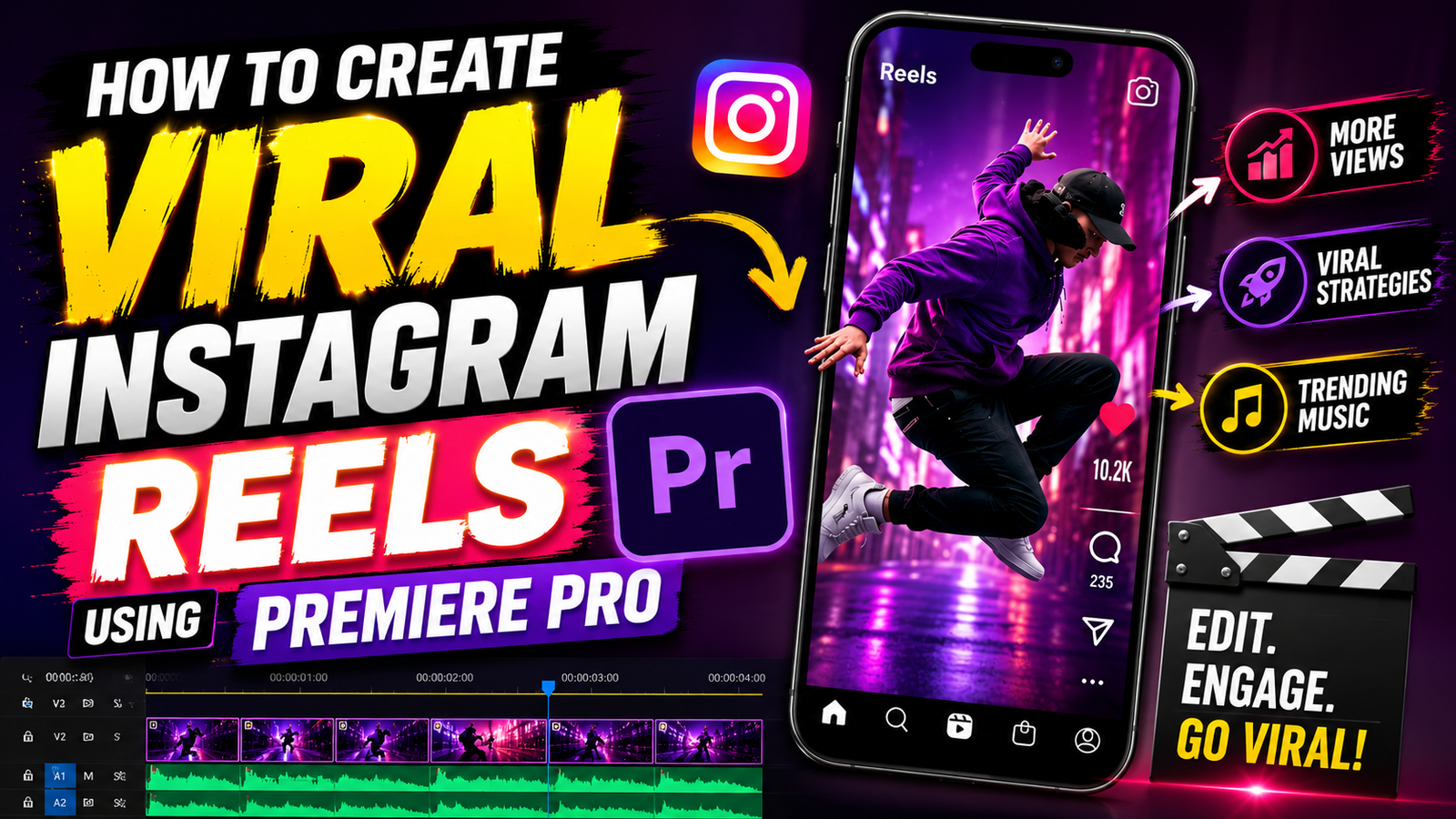
How to Create Viral Instagram Reels Using Premiere Pro
Instagram Reels have completely changed the way creators grow online. One short video can explode overnight and bring thousands of followers, views, and even customers. But here’s the truth — viral reels are not just about luck. They’re carefully edited, strategically planned, and optimized for engagement.
If you want to create attention-grabbing Reels using Adobe Premiere Pro, this guide will walk you through every step. Whether you're a beginner or an experienced creator, you’ll learn how to edit professional Instagram Reels that people actually watch until the end.
Understanding Instagram Reels
Why Reels Go Viral
Instagram’s algorithm loves content that keeps users engaged. The more people watch, like, share, comment, and save your Reel, the more Instagram pushes it to new audiences.
A viral Reel usually has:
- A strong hook in the first 3 seconds
- Fast pacing
- Trending audio
- Relatable or entertaining content
- High-quality editing
Think of your Reel like a movie trailer. If the first few seconds are boring, people scroll away instantly.
Importance of Video Editing
Editing is the secret sauce behind viral content. Good editing keeps viewers emotionally connected and visually entertained.
Without editing:
- Videos feel slow
- Attention drops quickly
- Engagement decreases
With smart editing:
- Every second feels exciting
- Audience retention improves
- Chances of going viral increase
Why Use Premiere Pro for Instagram Reels
Professional Editing Features
Premiere Pro gives creators complete control over their videos. Unlike mobile editing apps, it offers advanced tools like:
- Motion graphics
- Color grading
- Audio enhancement
- Speed ramping
- Multi-layer editing
Many successful creators and editors use Adobe Premiere Pro because it combines creativity with professional quality.
Faster Workflow for Creators
Once you understand Premiere Pro shortcuts and templates, editing becomes incredibly fast.
You can:
- Save preset transitions
- Reuse captions
- Create editing templates
- Export optimized Reel formats instantly
Time is everything in content creation. Faster editing means more content uploads.
Setting Up Premiere Pro for Reels
Best Sequence Settings
Before editing, create a vertical sequence optimized for Instagram.
Use these settings:
- Resolution: 1080 × 1920
- Frame Rate: 30fps or 60fps
- Aspect Ratio: 9:16
This ensures your Reel fills the entire mobile screen perfectly.
Export Settings for Instagram
Exporting incorrectly can ruin video quality.
Best export settings:
- Format: H.264
- Preset: Match Source High Bitrate
- Bitrate: 10–20 Mbps
These settings help avoid Instagram compression issues.
Planning Viral Reel Content
Choosing a Trending Topic
Trends spread because people already recognize them. You can increase reach by creating:
- Tutorials
- Before-and-after edits
- Funny relatable content
- Trending challenges
- Quick tips
Use Instagram Explore and TikTok to identify viral trends.
Understanding Audience Psychology
People watch Reels for:
- Entertainment
- Education
- Inspiration
- Curiosity
Ask yourself:
“Why would someone stop scrolling for this?”
That single question changes everything.
Writing Hooks That Grab Attention
Text Hooks
Hooks make viewers curious instantly.
Examples:
- “You’re editing Reels wrong.”
- “This Premiere Pro trick went viral.”
- “Watch this before posting your next Reel.”
Visual Hooks
Visual hooks are equally important.
You can use:
- Fast zoom-ins
- Dramatic transitions
- Bright colors
- Sudden movement
Your first frame matters more than your last frame.
Shooting High-Quality Videos
Camera Tips
You don’t need expensive gear. Modern smartphones shoot amazing video.
For better results:
- Shoot vertically
- Use stabilization
- Record in 4K if possible
- Keep your lens clean
Lighting and Audio Tips
Bad lighting destroys video quality.
Use:
- Natural window light
- Ring lights
- Soft LED panels
Clear audio is equally important. Viewers forgive average visuals faster than poor sound.
Importing and Organizing Footage
File Management
Professional editors stay organized.
Create folders for:
- Raw clips
- Music
- Sound effects
- Exports
- Graphics
This saves hours during editing.
Timeline Organization
Use color labels and separate tracks.
For example:
- Video Track 1 = Main clips
- Video Track 2 = Text overlays
- Audio Track 1 = Voice
- Audio Track 2 = Music
The organization improves editing speed dramatically.
Editing Fast-Paced Reels
Cutting Dead Space
Attention spans are short.
Remove:
- Pauses
- Mistakes
- Slow moments
- Unnecessary talking
Every second should add value.
Using Jump Cuts
Jump cuts keep energy high.
They:
- Maintain viewer attention
- Speed up storytelling
- Make content feel dynamic
Many viral creators use jump cuts every 1–3 seconds.
Adding Trending Music and Sound Effects
Choosing Viral Audio
Instagram promotes trending audio.
Search:
- Trending songs
- Viral sounds
- Popular remixes
Music creates an emotional impact instantly.
Syncing Audio With Visuals
Sync transitions and cuts with beats.
This makes your Reel:
- More satisfying
- More cinematic
- More engaging
Beat syncing is one of the easiest ways to make videos feel professional.
Using Captions and Text Animations
Subtitle Importance
Most users watch Reels without sound initially.
Captions:
- Improve accessibility
- Increase watch time
- Help viewers understand faster
Auto-captions inside Premiere Pro save massive time.
Text Animation Styles
Animated text grabs attention.
Popular styles include:
- Pop-up captions
- Kinetic typography
- Zoom text
- Shake effects
Use bold fonts for better mobile readability.
Color Grading for Instagram Reels
Cinematic Looks
Color grading adds emotion and professionalism.
Popular looks:
- Warm cinematic
- High contrast
- Moody dark tones
- Vibrant social media colors
Mobile-Friendly Color Adjustments
Instagram is mobile-first.
Boost slightly:
- Saturation
- Contrast
- Sharpness
But avoid overdoing it.
Too much editing makes videos look fake.
Adding Effects and Transitions
Smooth Transitions
Transitions keep videos visually interesting.
Popular Reel transitions:
- Zoom transitions
- Spin transitions
- Swipe transitions
- Blur transitions
Use them strategically instead of everywhere.
Motion Blur and Speed Ramping
Speed ramping adds dramatic energy.
Creators often combine:
- Slow motion
- Fast motion
- Motion blur
This technique is common in viral cinematic edits.
Exporting Reels for Maximum Quality
Best Codec Settings
The H.264 codec remains best for Instagram uploads.
Recommended settings:
- VBR 2-pass
- High Profile
- AAC Audio
These settings preserve quality while reducing file size.
Avoiding Compression Issues
Instagram compresses videos heavily.
To reduce quality loss:
- Avoid low-bitrate exports
- Upload from a stable internet
- Export at 1080×1920
Never upload blurry content.
Posting Strategy for Virality
Best Posting Times
Timing matters.
Generally effective posting times:
- Morning: 7–9 AM
- Afternoon: 12–2 PM
- Evening: 6–9 PM
Test different times to find your audience behavior.
Hashtags and Captions
Use a mix of:
- Broad hashtags
- Niche hashtags
- Trending hashtags
Example:
- #PremierePro
- #InstagramReels
- #VideoEditing
- #ContentCreator
Captions should encourage interaction.
Ask questions like:
- “Would you try this edit?”
- “Which transition is best?”
Common Mistakes to Avoid
Overediting
Too many effects can overwhelm viewers.
Keep edits:
- Clean
- Fast
- Purposeful
Sometimes simple edits perform better.
Ignoring Audience Retention
Retention is everything.
If viewers leave early:
- Reach drops
- Virality decreases
Always analyze:
- Watch time
- Replay rate
- Engagement
Tools and Resources for Reel Creators
Useful Plugins
Popular Premiere Pro plugins include:
- Motion Bro
- Red Giant Universe
- Film Impact
These tools speed up editing workflows.
Free Resources
Useful free resources:
- Pexels Videos
- Pixabay Music
- Mixkit
You can find stock footage, sound effects, and transitions for free.
Future Trends in Instagram Reels
AI Editing
AI tools are transforming video editing.
Features now include:
- Auto captions
- Smart reframing
- AI voice enhancement
- Automatic cuts
AI saves creators huge amounts of time.
Vertical Video Domination
Vertical content is the future.
Platforms prioritizing vertical videos:
- YouTube Shorts
- TikTok
Creators who master vertical storytelling will dominate social media.
Conclusion
Creating viral Instagram Reels with Premiere Pro is a mix of creativity, strategy, and smart editing. You don’t need expensive gear or a giant team. What you really need is:
- Strong hooks
- Fast-paced editing
- Trending audio
- Consistent uploads
- Audience-focused storytelling
The creators who succeed are the ones who keep experimenting. Every Reel teaches you something new about your audience and editing style.
Start simple, improve every upload, and stay consistent. Your next Reel could be the one that changes everything.
FAQs
1. Is Premiere Pro good for Instagram Reels?
Yes, Premiere Pro is one of the best professional tools for editing high-quality Instagram Reels because it offers advanced editing, effects, transitions, and export settings.
2. What is the best resolution for Instagram Reels?
The ideal resolution is 1080 × 1920 with a 9:16 aspect ratio.
3. How long should a viral Reel be?
Most viral Reels perform best between 7 and 30 seconds because shorter videos usually have higher completion rates.
4. Can I edit Reels on a low-end laptop?
Yes, but performance may be slower. Using proxy files and optimized media can improve editing speed.
5. How often should I post Instagram Reels?
Consistency matters more than volume. Posting 3–5 quality Reels weekly is a strong strategy for growth.
6. Do hashtags still work for Reels?
Yes, hashtags still help Instagram understand your content category and improve discoverability.
7. What type of Reels go viral most often?
Educational tips, relatable humor, cinematic edits, before-and-after videos, and trend-based content usually perform very well.
Comments (0)